How to Generate Styled Legal PDF Files with a No-Code Bot
Use the Create PDF node in e! to auto-generate styled, downloadable PDFs in your Legal Bot — choose a template, control client access, and build your document.
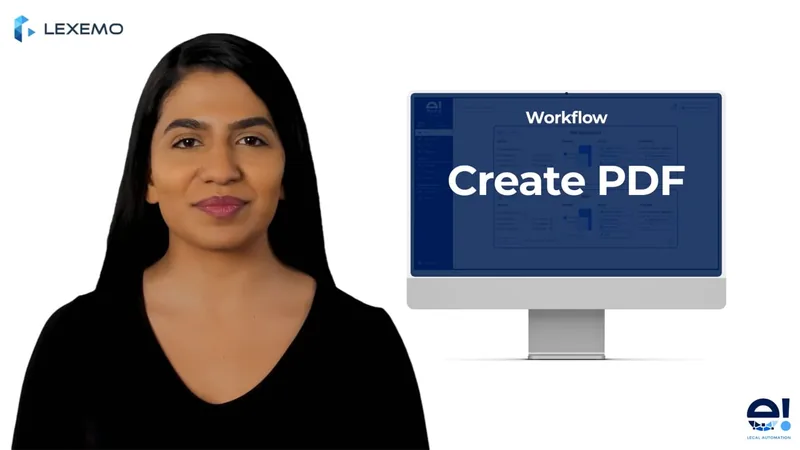
The Create PDF Node in e! by Lexemo is a powerful tool for process automation that allows users to create stunning PDFs with ease.
Step 1: Add the Create PDF Node
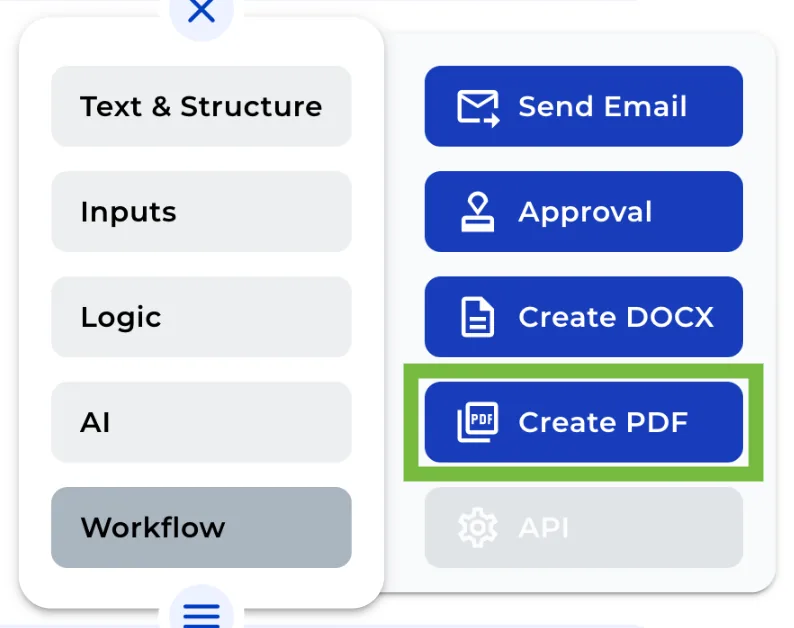
Add a Create PDF Node from the the “+” menu or “burger menu” in your canvas. You can find this node under “Workflow” section.
Step 2: Define a Field Name for Referencing
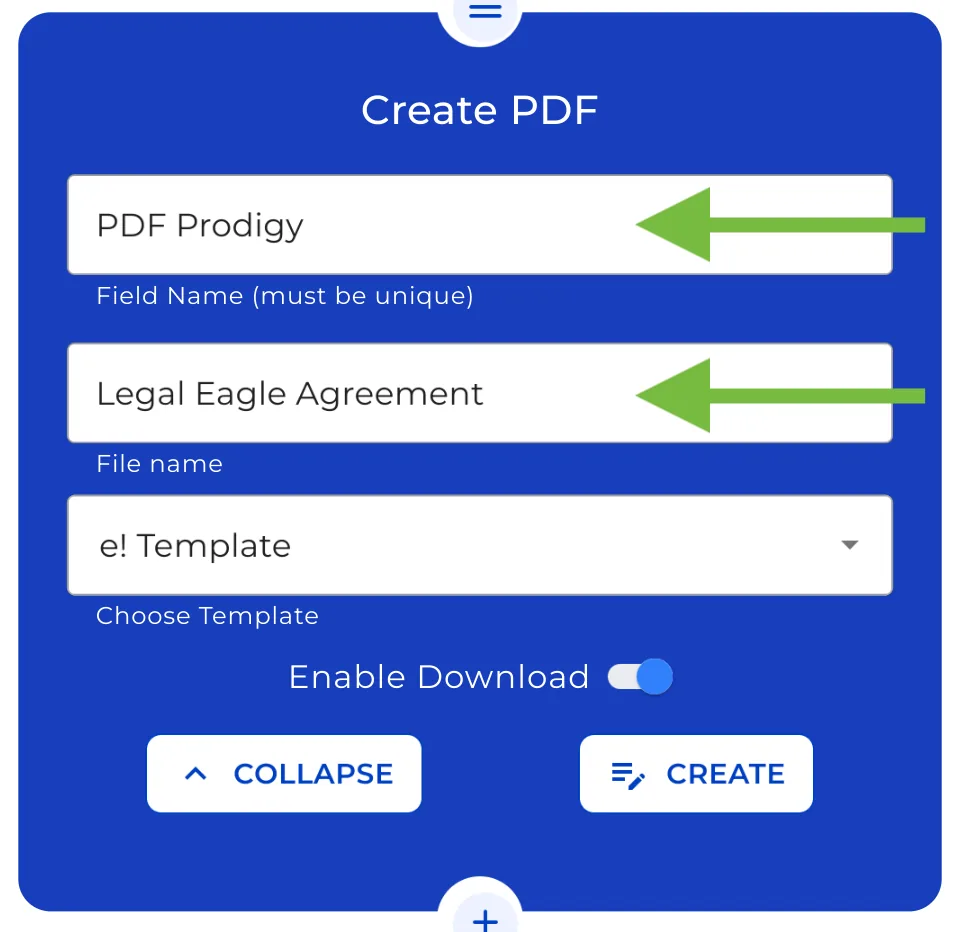
First, you’ll need to assign a field name for referencing within the Bot. Choose a unique name.
Step 3: Define the File Name of the Resulting PDF
Next, specify the file name for the resulting PDF. To ensure easy identification later, opt for a descriptive name.
Step 4: Choose a Style Template
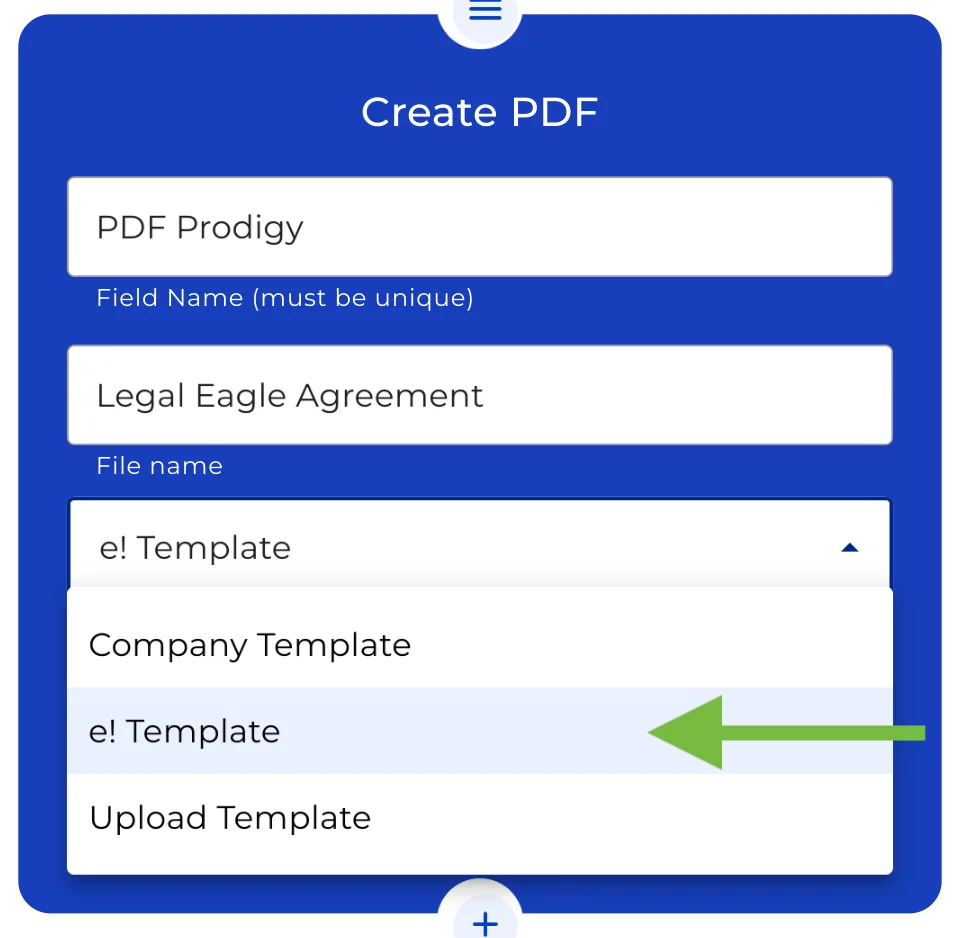
Select your desired style template. You can choose from the standard corporate template, the standard e! template, or even upload your own custom design. The choice is yours – you have complete control over the look and feel of your PDF.
Step 5: Decide on Download Availability
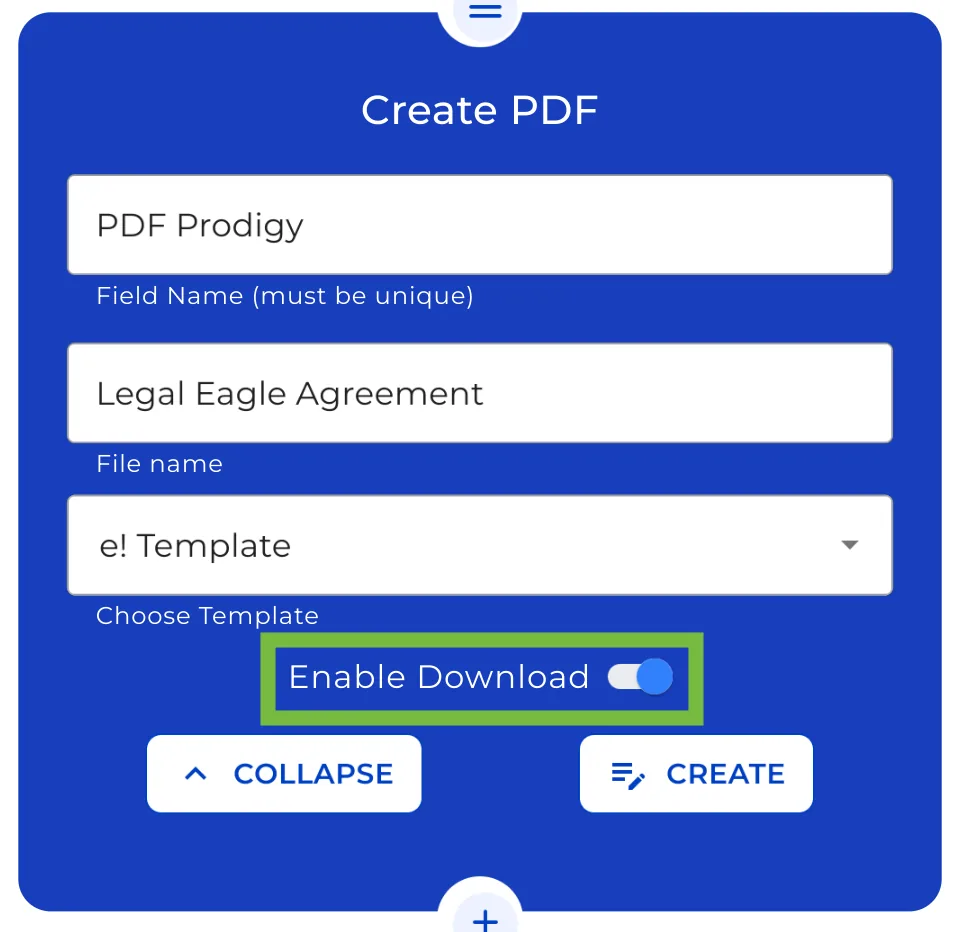
If you want your clients to be able to download your PDF from the front end, you just need to enable this option on the node. In some cases, it may be preferable to keep your PDF confidential, so make sure you turned it off.
Step 6: Initiate the Creation Process
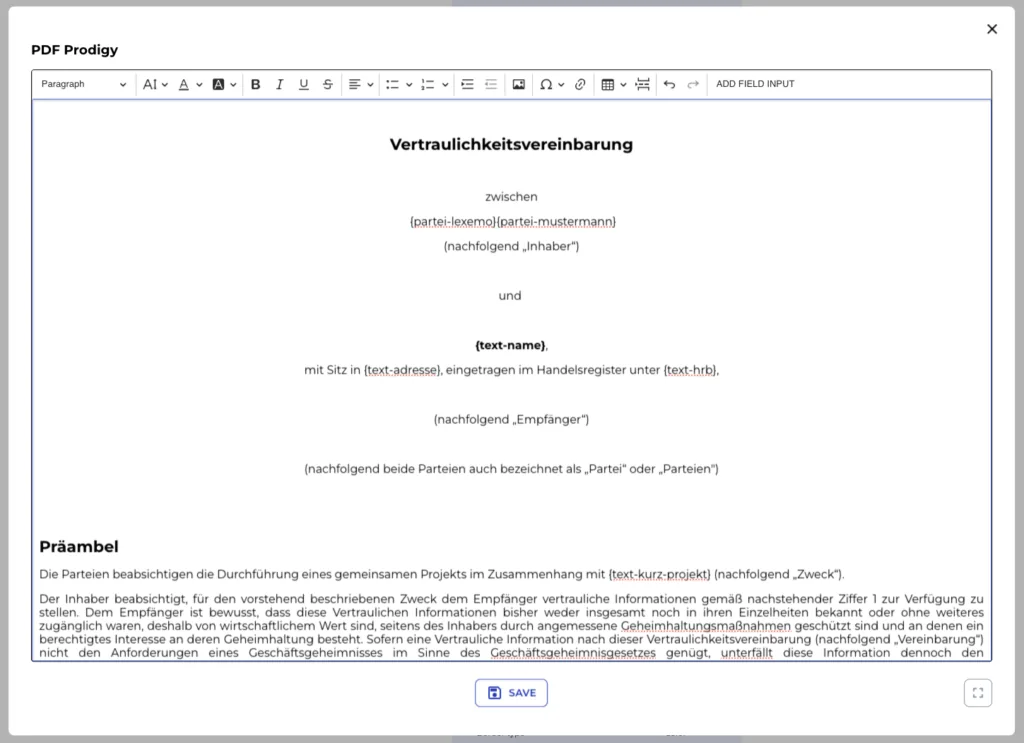
Once you’ve made your selections, click the “Create” button to begin the magic. The editor is now at your fingertips, allowing you to create a document that shines.
Overall, with its user-friendly interface and powerful features, the Create PDF Node is an essential tool for anyone looking to streamline their workflow and produce high-quality PDFs quickly and easily.