Top Menu: Search Bots, Switch Views & Access Account in e!
Learn to use the e! Top Menu — search bots by name, switch between Builder and Consumer mode, and access Account, Support, and Logout options.
The Top Menu will allow you to work faster and more efficiently in your Bots. In this tutorial, we will guide you through some essential features that will enhance your e! experience.
Step 1: Using the ‘Search Bar’
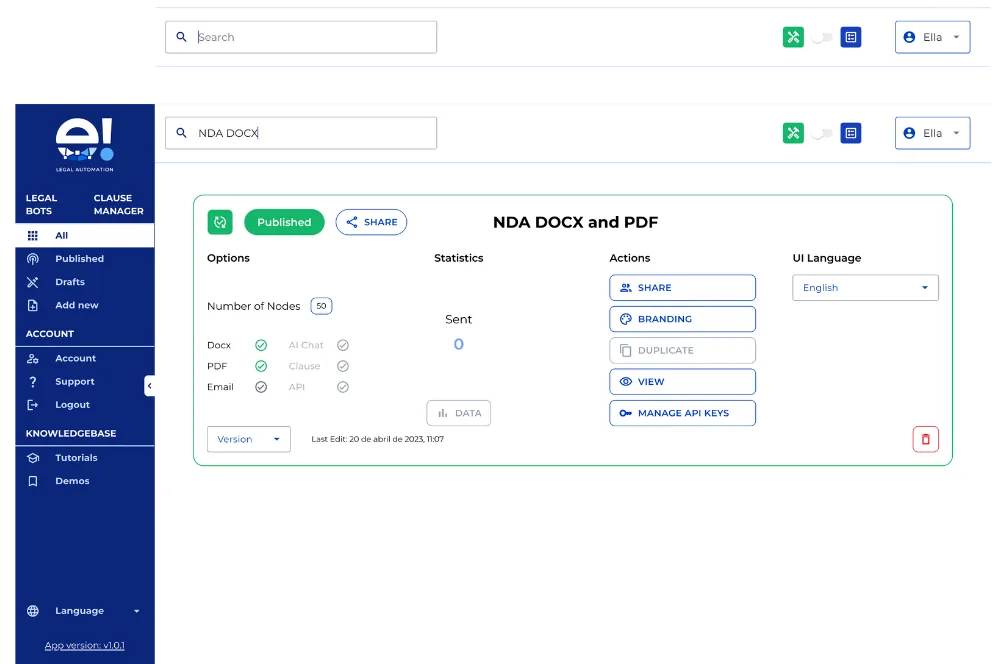
The Search Bar is a critical component of our user-friendly interface. It’s designed to quickly find bots you’ve created in the past. All you need to do is simply type in the name of your bot, and the Search Bar will do the work for you. It’s your personal bot detective!
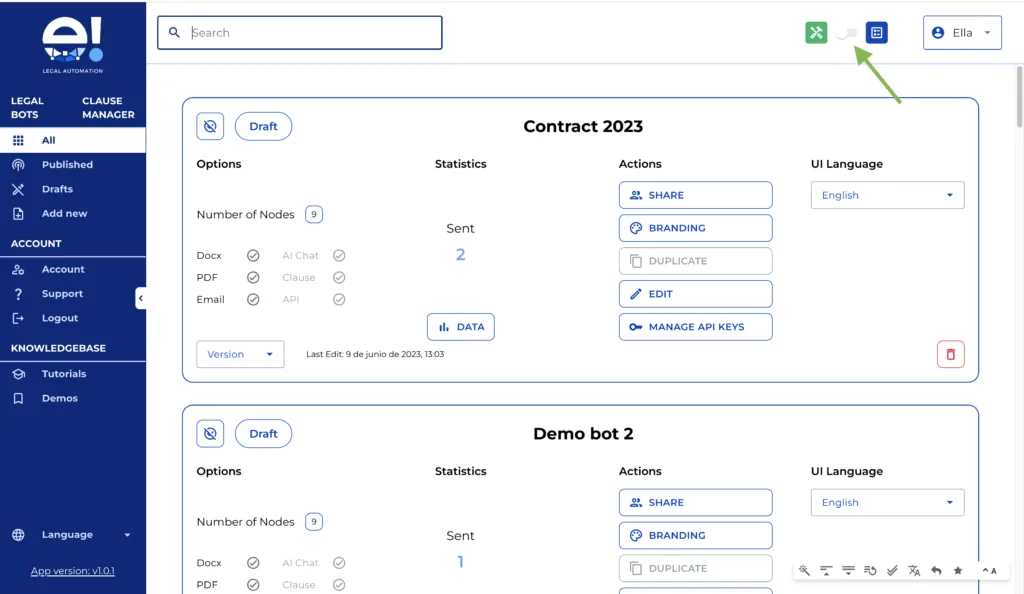
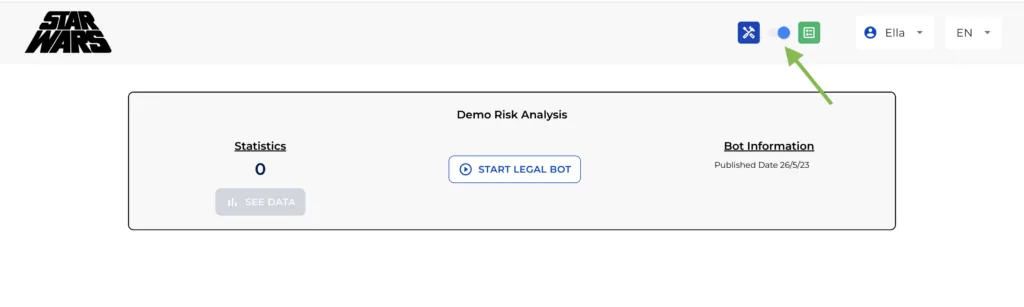
Step 2: Switching Views with ‘Change Views’
The Change Views feature acts like a toggle switch, allowing you to shift between “Builder mode” and “Consumer mode”. If the “tools icon” is glowing green, you’re in Builder mode, where you can craft and manage bots from your dashboard. But if the “list” icon is green, you’re viewing Consumer mode. Just remember, you’ll only see bots in your Consumer Dashboard if you’ve been invited to interact with a bot.
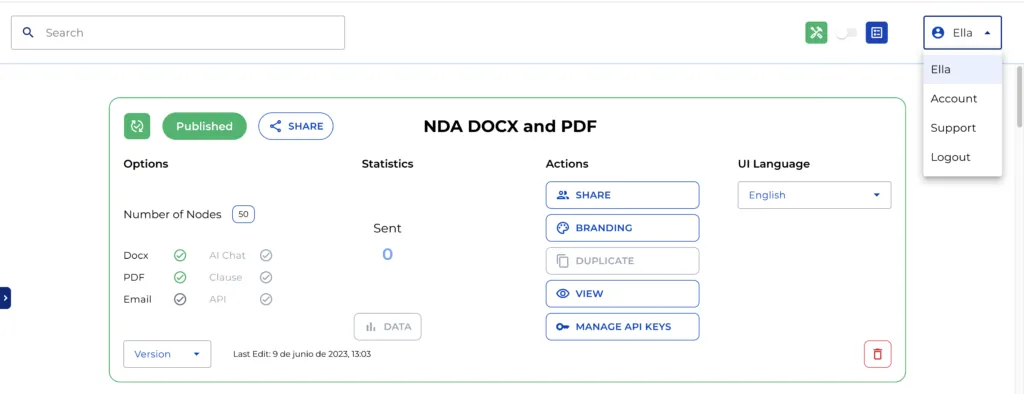
Step 3: Accessing Account Options via ‘User Dropdown’
Finally, we have the User Dropdown feature. This is your go-to tool when your left menu is hided. It’s your quick access to ‘Account’, ‘Support’, and ‘Logout’ options.
And there you have it! Three key steps to unlock a more efficient and enjoyable experience with e!. Enjoy automating with e!